Recruitee-gebruikers beheren hun hele wervingspipeline in één systeem. Kandidaatdossiers, vacaturepipelines, teambeoordelingen, wervingsworkflows. Alles loopt via Recruitee. Het enige dat altijd buiten dat systeem viel, is wat er tijdens het interview zelf gebeurt.
Dat verandert met de integratie tussen In2Dialog en Recruitee. Zodra een recruiter een interview afrondt, komt het gestructureerde rapport automatisch in het juiste kandidaatdossier in Recruitee terecht. Geen notities overtypen in velden. Niet wisselen tussen tabbladen. Geen inhaalslag met admin aan het eind van de dag. De data gaat vanzelf naar de juiste plek, in een vorm waar Recruitee echt iets mee kan.
Op deze pagina lees je hoe de integratie werkt, hoe je hem instelt, welke data er tussen de twee systemen wordt uitgewisseld en hoe je hem inricht zodat hij past bij de workflow van je team.
Wat de integratie doet
De jury van de Recruitee-integratie van In2Dialog koppelt je interview intelligence rechtstreeks aan je Recruitee-omgeving. Na afloop van een interview maakt In2Dialog een gestructureerd rapport en zet het de relevante data in het bijbehorende kandidaatdossier in Recruitee.
Dit is geen ruwe dump van de transcriptie. De integratie koppelt specifieke datapunten aan de juiste velden en entiteiten in Recruitee. Zo komt gestructureerde informatie zoals salarisverwachting, beschikbaarheid, belangrijkste motivaties en vervolgacties op de juiste plek terecht, zonder handmatige invoer.
Het resultaat is dat elk kandidaatdossier in Recruitee consistente, gestructureerde interviewdata bevat. Je team besteedt minder tijd aan admin en meer tijd aan de gesprekken die echt tot plaatsingen leiden.
De integratie instellen
De Recruitee-integratie van In2Dialog stel je in een paar minuten in. Volg deze stappen om de twee systemen te koppelen.
1. Zorg dat je admin bent van je In2Dialog-organisatie.
2. Ga naar je Recruitee-omgeving. Open Settings en kies “Personal API Tokens” onder “Apps and Plugins”.
3. Maak een nieuwe token aan door rechtsboven op “New Token” te klikken. Bewaar deze token op een veilige plek. Hij geeft toegang tot je Recruitee-omgeving.
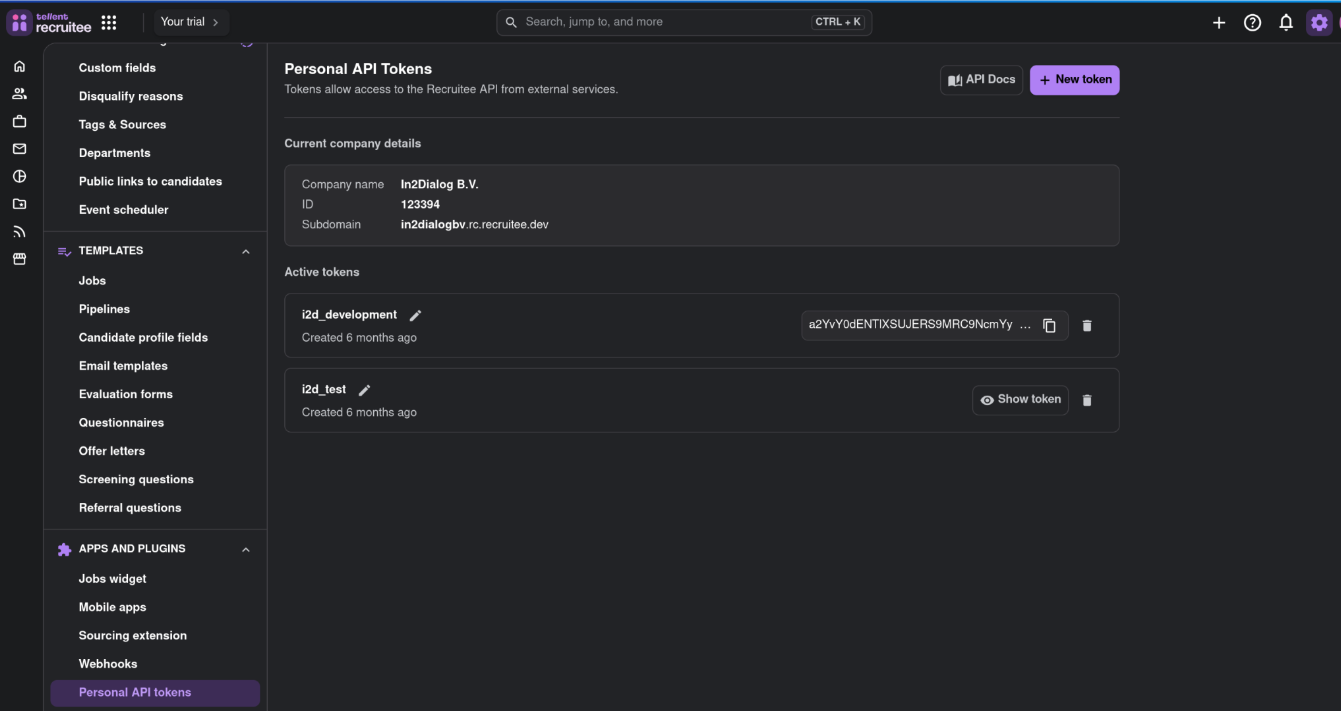
Figuur 1. Een Personal API Token aanmaken in de Recruitee-omgeving.
4. Ga naar je In2Dialog-omgeving. Klap de sectie “My Organisation” uit en kies “ATS Integrations”.
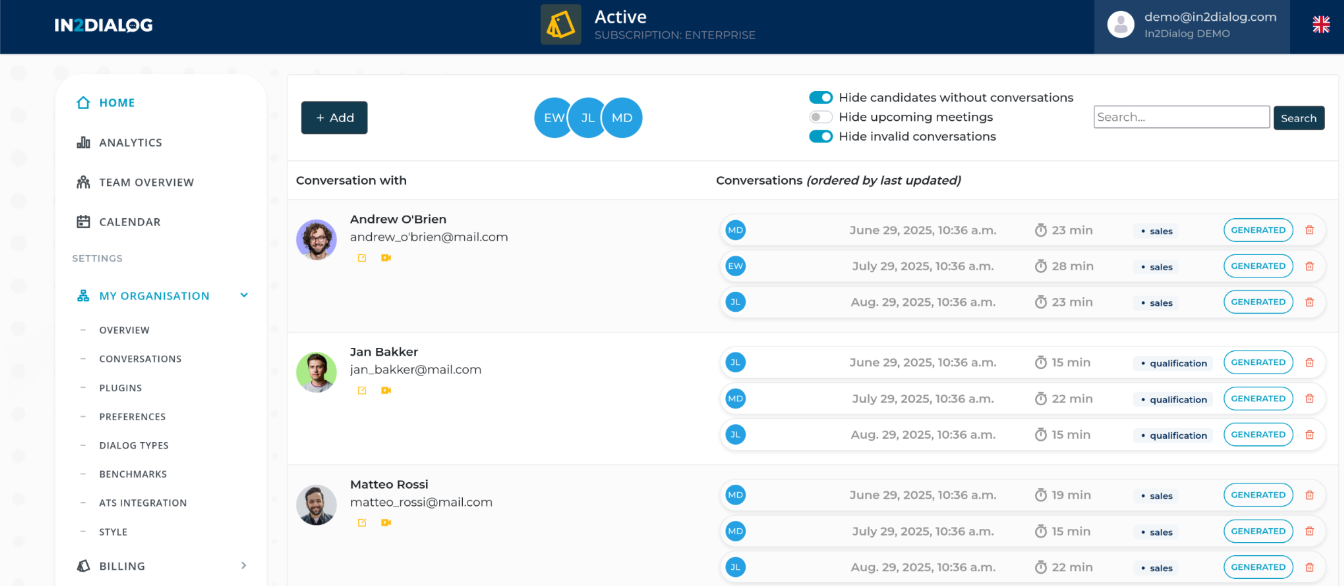
Afbeelding 2. De optie ATS Integrations, zichtbaar voor admins in In2Dialog.
5. Als je wordt gevraagd je ATS-provider te kiezen, selecteer je “Recruitee”. Je krijgt dan de vraag om je persoonlijke API-sleutel van Recruitee in te voeren.
6. Vul de token in die je bij stap 3 hebt aangemaakt en klik op “Confirm”.
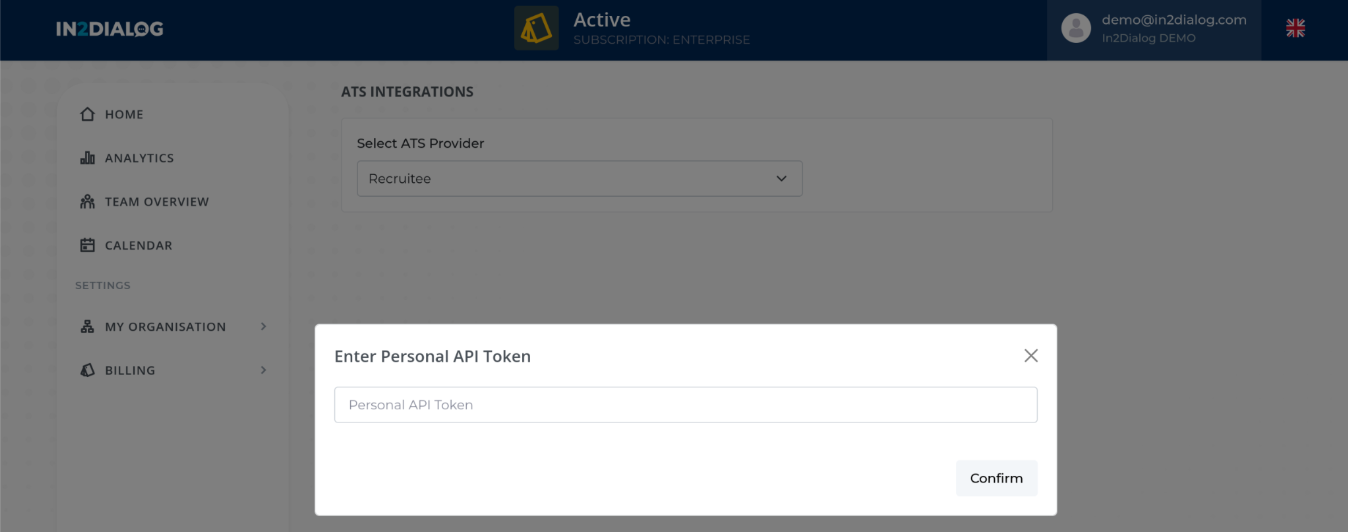
Afbeelding 3. Recruitee selecteren en de Personal API Token invoeren.
De integratie is nu ingesteld. In2Dialog kan communiceren met je Recruitee-omgeving en interviewdata in de juiste kandidaatdossiers zetten.
Instellen hoe data in Recruitee terechtkomt
Zodra de integratie live is, bepaal jij precies hoe en waar In2Dialog met je Recruitee-omgeving samenwerkt. Dat regel je via de ATS Mapper in In2Dialog.
Ga naar “ATS Mapper” onder “My Organisation” in In2Dialog. Je ziet een lijst van alle dialoogtypes in je organisatie, zowel standaard als zelfgemaakt. Selecteer een template om drie configuratietabbladen te openen.
Field Mapper koppelt datapunten uit In2Dialog direct aan waarden in Recruitee. Salarisverwachting, beschikbaarheid, competentie-indicatoren en elk ander gestructureerd veld kun je naar het bijbehorende veld in het kandidaatdossier sturen.
Note Configuration maakt een notitie of bijlage aan die aan het bijbehorende contact in Recruitee wordt toegevoegd. Handig voor teams die de volledige samenvatting als kandidaatnotitie willen zien, naast de gekoppelde velden.
File Upload zet de gegenereerde PDF- of DOCX-versie van je In2Dialog-rapport direct bij het bijbehorende contact in Recruitee. Hiring managers en klanten die een opgemaakt document nodig hebben, openen het zo vanuit het kandidaatdossier.
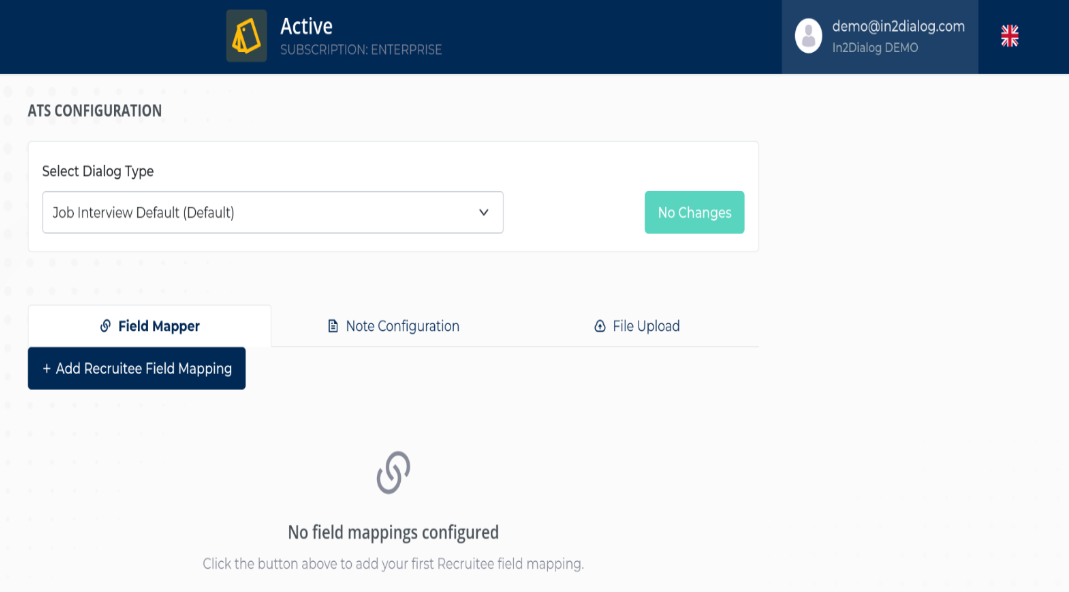
Figuur 4. De drie configuratieopties voor de Recruitee-integratie in de ATS Mapper van In2Dialog.
Je kunt deze drie opties in elke combinatie gebruiken. De meeste teams gebruiken ze alle drie, zodat de gestructureerde data in de velden staat, er een leesbare samenvatting in de notities verschijnt en er een deelbaar rapport aan het dossier hangt.
Welke data er tussen In2Dialog en Recruitee wordt uitgewisseld
In2Dialog maakt uitgebreide rapporten op basis van wat er in je interviews wordt besproken. De data die je naar Recruitee kunt sturen, bestaat uit de onderwerpen die in het gesprek aan bod kwamen, variabelen zoals getallen, tekst of dropdownwaarden, gesprekstypes en psychometrische indicatoren, waaronder persoonlijkheidskenmerken, drijfveren en soft skills.
Al deze data kun je via de hierboven beschreven ATS Mapper instellen en koppelen aan de juiste velden in Recruitee.
Andersom kan In2Dialog informatie opvragen (maar niet opslaan) over contacten zoals kandidaten, hiring managers of contactpersonen bij klanten. Die informatie wordt gebruikt om deelnemers nauwkeurig aan gesprekken te koppelen, zonder dat de recruiter dat handmatig hoeft te doen. In2Dialog kan ook basisgegevens zoals voornaam en achternaam opvragen om een persoonlijker rapport te maken, als er via agenda- of meetingbotintegraties alleen beperkte gegevens beschikbaar zijn, zoals een e-mailadres of telefoonnummer.
Waarom deze integratie belangrijk is voor Recruitee-gebruikers
De meeste interviewtools op de markt geven je een transcriptie en een samenvatting. Daarmee weet je wat er is gezegd. Je weet niet of de kandidaat de juiste match is voor de functie.
In2Dialog gaat verder dan conversation intelligence. Een transcriptie en samenvatting zijn slechts het beginpunt. De echte waarde ontstaat als de recruiter dat combineert met het cv en de vacaturetekst. Pas dan kun je echt beoordelen of de match klopt, waar de gaps zitten en wat er opgevolgd moet worden. Zo ontstaat een rapport waar je echt iets mee kunt.
En dankzij de Recruitee-integratiekomt alles automatisch op de juiste plek terecht. Geen handwerk. Geen losse data buiten je ATS.
In2Dialog legt bovendien elk type gesprekvast. Videogesprekken via Zoom, Teams of Google Meet. Telefoongesprekken. Live interviews op locatie, opgenomen met de mobiele app van In2Dialog. De meeste AI-notetakers werken alleen bij video. In2Dialog legt alle formats vast en levert dezelfde gestructureerde output aan Recruitee, ongeacht hoe het interview is gevoerd.
Voor Recruitee-gebruikers met veel interviews betekent dit dat elk kandidaatdossier compleet is. Elk interview wordt consistent vastgelegd. Elke recruiter in je team levert dezelfde gestructureerde output, ongeacht hoe hij gewend is notities te maken.
Hulp nodig
Heb je vragen over het instellen of configureren van de Recruitee-integratie? Neem dan contact op met het team van In2Dialog.
E-mail info@in2dialog.com
Telefoon +31 85 303 6330
Wil je de volledige workflow van interview tot kandidaatdossier in Recruitee zien, book a demo en we lopen hem samen met je door in je eigen setup.